
Overview
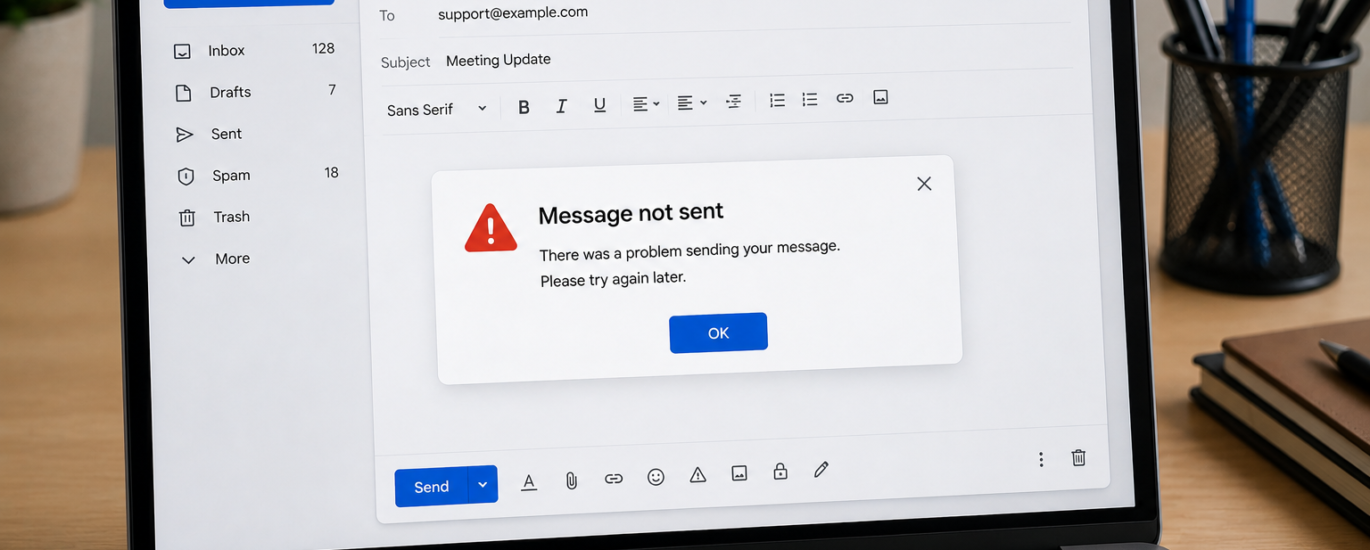
If your emails are not sending successfully, the issue could be related to your internet connection, incorrect email settings, large attachments, temporary server outages, or problems with your email application. In many cases, you can fix the problem by checking your connection, verifying your account settings, and following a few basic troubleshooting steps.
Troubleshooting Steps
1. Check Your Internet Connection
Make sure your device is connected to a reliable internet network. A weak or disconnected connection can prevent emails from being sent.
2. Verify the Recipient’s Email Address
Carefully review the recipient’s email address for typing mistakes. An incorrect address may stop the email from being delivered.
3. Reduce Attachment Size
If your email contains large files, remove or compress them before sending. Many email providers limit the maximum attachment size.
4. Save the Email and Try Again
Save the message as a draft, wait for a few minutes, and then attempt to send it again. This can help if the issue is temporary.
5. Sign Out and Sign Back In
Log out of your email account and then log back in to refresh your account session.
6. Restart Your Device
Restart your computer, smartphone, or tablet to clear temporary issues affecting your email application or network connection.
7. Review Outgoing Mail Settings
Check that your outgoing mail server (SMTP) settings are correct. Incorrect configuration can prevent emails from being sent.
8. Update Your Email Software
Install the latest version of your email application or web browser to ensure you have the newest fixes and compatibility improvements.
9. Clear Temporary Files
If your email application stores cache or temporary data, clear it to remove any corrupted files that may be causing problems.
10. Try Again Later
Sometimes email services experience temporary outages or maintenance. Wait a short period and send the email again.
Helpful Tips
- Keep your email application or browser updated.
- Avoid attaching unsupported file types or files that exceed the allowed size limit.
- Periodically review your account settings to ensure they are accurate.
- Make sure your mailbox has enough available storage to send and receive emails.
Need More Help?
If you’ve completed all of these troubleshooting steps and your emails still won’t send, the issue may require additional account verification or assistance from your email service provider or your organization’s technical support team.