
Overview
Email forwarding allows incoming messages to be automatically sent to another email address. If forwarding is not working, emails may fail to reach the destination account due to incorrect forwarding settings, disabled rules, verification issues, or temporary service interruptions. Most forwarding problems can be resolved by reviewing your forwarding configuration and account settings.
How to Fix Email Forwarding Issues
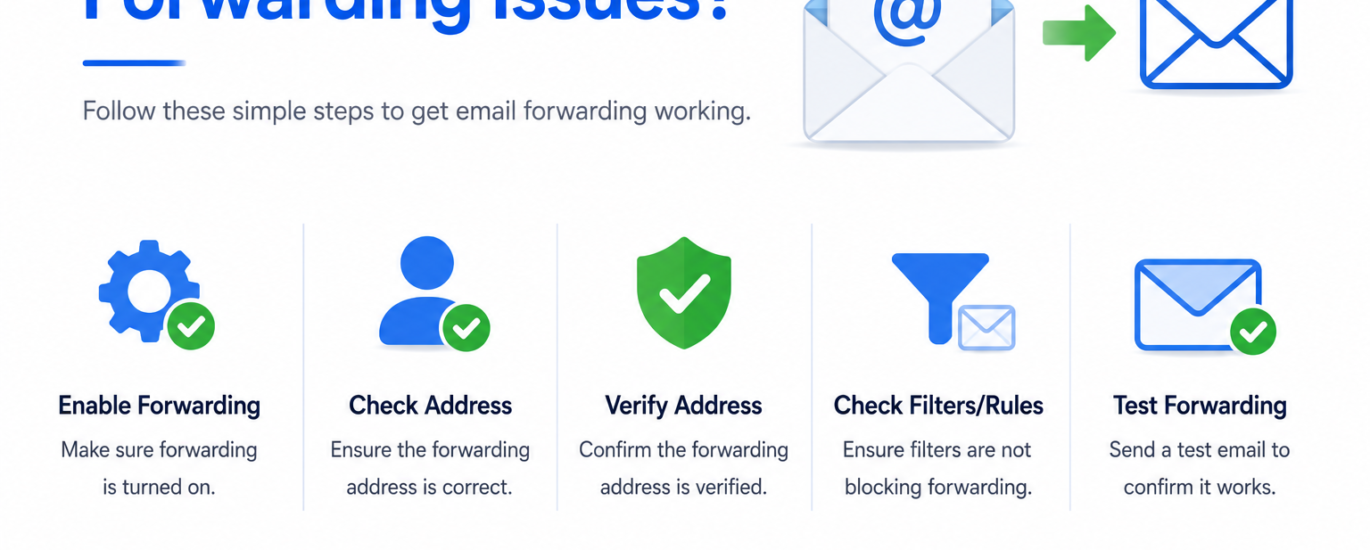
- Verify that email forwarding is enabled in your account settings.
- Check that the forwarding email address is entered correctly.
- Confirm that the forwarding address has been verified, if required.
- Review your email filters and rules to ensure they are not blocking forwarded messages.
- Check the destination inbox, including the Spam and Junk folders.
- Save your forwarding settings and restart your email application.
- Sign out of your account and sign back in.
- Update your email application or web browser to the latest version.
- Send a test email to confirm that forwarding is working properly.
- Wait a few minutes and test again if there is a temporary service delay.
Additional Tips
- Regularly review your forwarding settings for accuracy.
- Remove outdated forwarding addresses that are no longer in use.
- Keep your email application updated for the best performance.
- Test forwarding periodically to ensure it continues working as expected.
Following these troubleshooting steps can resolve most email forwarding issues. If emails still are not being forwarded correctly, additional account configuration or technical assistance may be required.