
Overview
An email signature automatically adds your contact information or a custom message to outgoing emails. If your email signature is not working, it may not appear in new messages, replies, or forwarded emails. This can happen due to incorrect signature settings, formatting issues, synchronization problems, or outdated applications. Most signature-related problems can be resolved by reviewing and updating your email settings.
How to Fix Email Signature Not Working
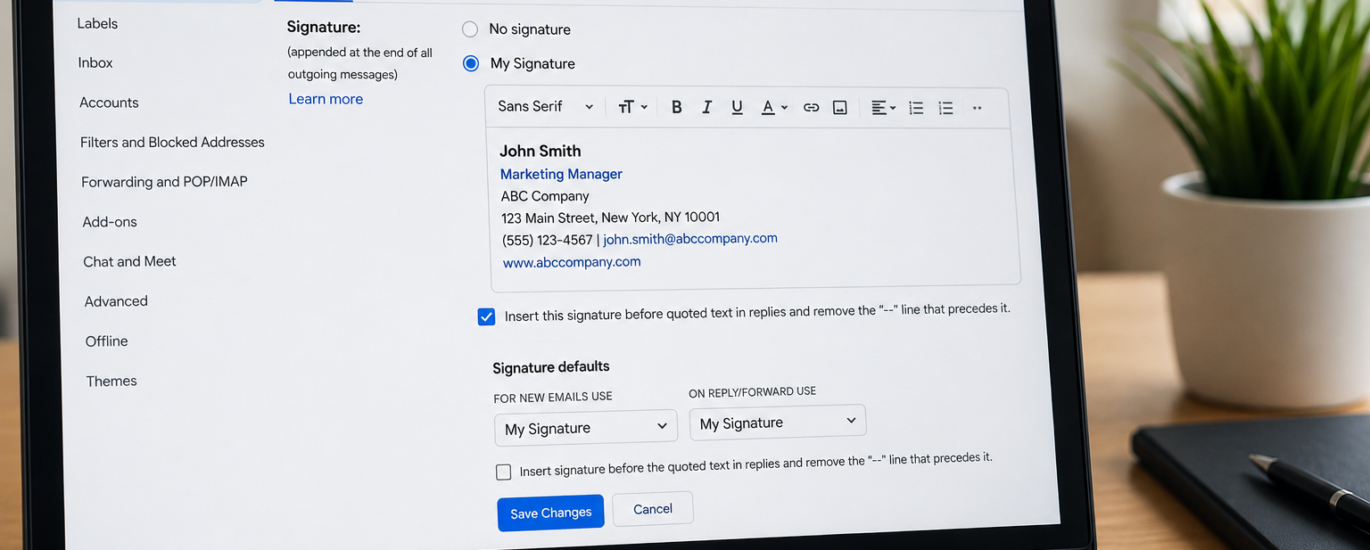
- Verify that your email signature feature is enabled.
- Check that the correct signature is selected for new emails and replies.
- Save any recent changes made to your signature settings.
- Remove unsupported formatting, images, or special characters from the signature.
- Create a new test email to confirm the signature is being added automatically.
- Sign out of your email account and sign back in.
- Restart your email application or refresh your web browser.
- Update your email application to the latest version.
- Delete and recreate the signature if it continues to malfunction.
- Send a test email to verify the signature appears correctly before sending important messages.
Additional Tips
- Keep your signature simple and easy to read.
- Avoid using large images or unsupported formatting.
- Review your signature after updating your email settings.
- Test your signature regularly to ensure it displays correctly.
Following these troubleshooting steps can resolve most email signature issues. If your signature still does not appear correctly, additional account or application troubleshooting may be required.