
Overview
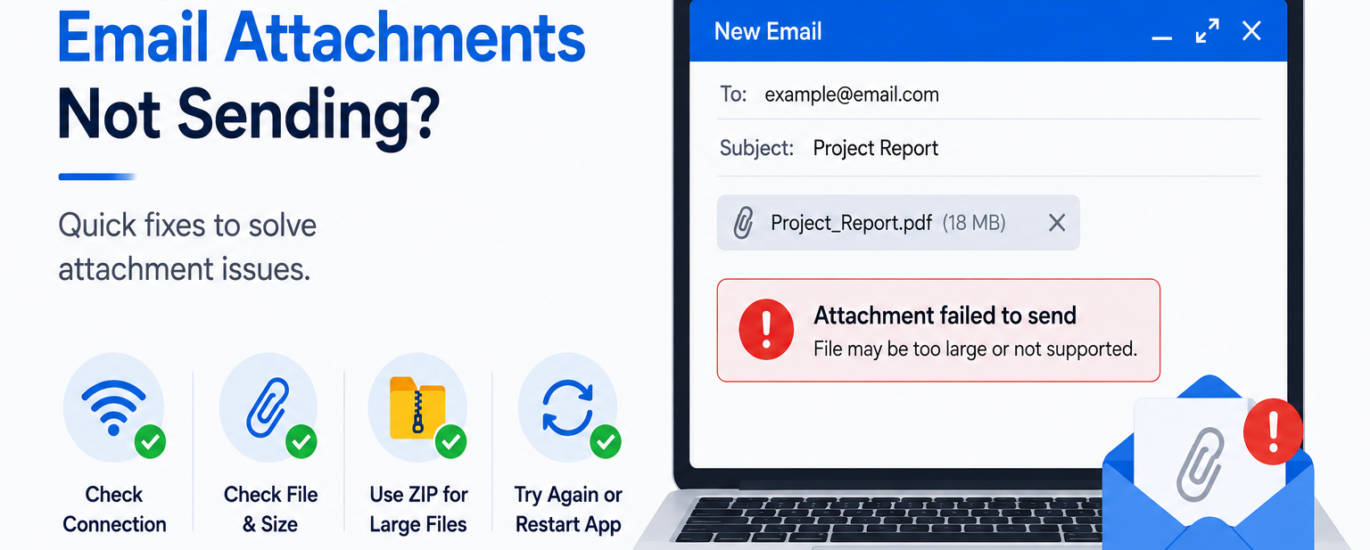
If your email attachments are not sending, the issue may be related to large file sizes, unsupported file formats, unstable internet connections, insufficient mailbox storage, or temporary application errors. In most cases, attachment problems can be resolved by checking the file and making a few simple adjustments before sending the email again.
How to Fix Email Attachments Not Sending
- Check that your internet connection is stable.
- Verify that the attachment was added successfully to the email.
- Reduce the file size if it exceeds the allowed attachment limit.
- Compress large files into a ZIP folder before attaching them.
- Rename the file if it contains special characters or an unusually long filename.
- Make sure the file format is supported.
- Save the email as a draft and try sending it again.
- Restart your email application or refresh your web browser.
- Update your email application to the latest version.
- Remove the attachment and upload it again before resending the email.
Additional Tips
- Keep individual attachment sizes as small as possible.
- Avoid attaching multiple large files in a single email.
- Ensure your mailbox has enough available storage.
- Regularly update your email application for improved performance.
Following these troubleshooting steps can resolve most email attachment issues. If attachments still fail to send, the problem may require additional account or application troubleshooting.